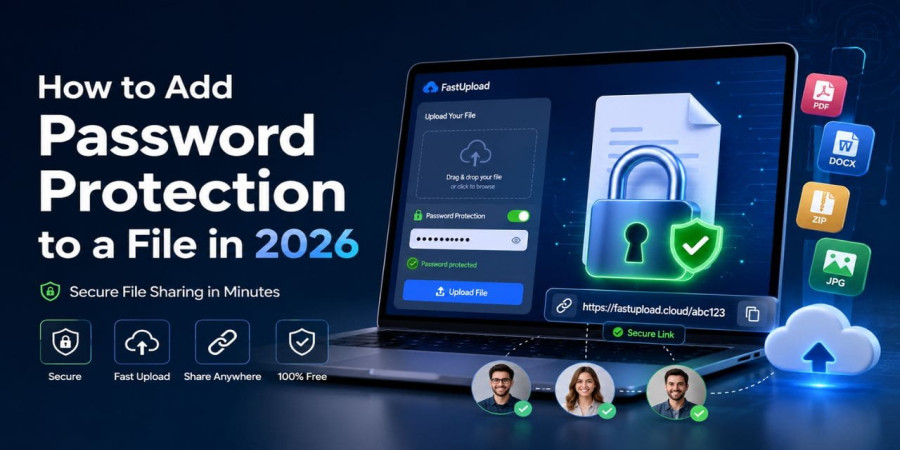
How to Add Password Protection to a File in 2026
Jun 20, 2026 01:13 PM
Sudip Acharya
It has never been easier to share files on the Internet. But have you ever thought about how you could make sure that only the right people can see the files you share with them? If you are going to send a contract, your personal photos, a sensitive report, or any other private documents, you surely don't want someone else to see those. In 2026, password protecting a file before sharing becomes one of the easiest and best ways to ensure that no one else will be able to open it.
And there is some really good news: you won't need to purchase any software or apps, or even register anywhere. With FastUpload you can just upload and protect your files with the password within just two minutes, without having to pay anything at all!
Here we'll show you how to do it.
What Is Password-Protected File Sharing?
The concept of password-secured file sharing secret passcode to your uploaded file such that only those who have the correct passcode will be able to access or download the file. If you give someone the link, they will be asked for the passcode before being able to see anything.
This becomes particularly vital when you need to send confidential information regarding sensitive personal information, financial data, legal documents, or private media. If the file is not secured with a passcode, anyone who gets the share link accidentally will be able to download your file without any hassle.
💡 Did you know?According to cybersecurity researchers, a significant portion of data exposures happen not through hacking, but through unprotected shared links. Adding a password to your file is a simple habit that dramatically reduces this risk.
Why Use FastUpload for Secure File Sharing?
In 2026, there are dozens of file-sharing programs available; but, before you can use security features, the majority of them demand you to register, pay a monthly fee, or install an app. FastUpload was created in a unique way with the intention of enabling everyone to share files quickly, securely, and without any hassles.
This is how FastUpload stacks up against conventional file-sharing techniques:
Google Drive (free) Feature FastUpload Email Attachment WeTransfer (free) requires no account. Indeed. ✘ Yes ✘ No ✘ Password security ✘ Free No ✘ Paid only ✘ Shareable link✘ Yes✘ No✘ Yes✘ Instant upload✘ Yes✘ Yes✘ You must log in.
Most rivals only offer password security for premium tiers, however FastUpload offers it for free without requiring you to sign up. For anyone who requires fast, secure sharing while on the road, it is a big benefit.
Step-by-Step: How to Password Protect a File on FastUpload (2026)
Follow these simple steps to upload and protect your file with a password. The entire process takes less than two minutes.
1 Visit FastUpload.cloud
Open your web browser and go to fastupload.cloud. There's no sign-up, no login, and no installation required. The homepage loads instantly and you're ready to go.
2 Click the Upload Button & Select Your File
Click the Upload button on the homepage. A file browser will open — navigate to the file you want to share and select it. FastUpload supports a wide range of file formats including PDFs, Word documents, images, videos, and ZIP archives.
3 Click the Lock Icon to Enable Password Protection
Once your file is selected, look at the left panel of the upload area. You'll see a small lock (unlock) icon. Click on it. A Password Protection popup will appear, prompting you to enter a password for your file.
4 Enter Your Password & Click Submit
Type a strong, memorable password into the popup field. This is the password that will be required before anyone can access your file. Once you've entered it, click Submit to confirm.
5 Confirm the Lock Icon Turns Green
After clicking Submit, the lock icon will change color from its default to green. This green indicator means password protection is now active and applied to your file. If it hasn't turned green, re-enter your password and try again.
6 Click Upload & Get Your Shareable Link
Now click the main Upload button to finalize and upload your file. FastUpload will process the file and give you a unique shareable link. Copy this link and share it with the people you want — they'll need your password to open the file.
You're done!Your file is now uploaded and secured. Anyone who receives your link will see a password prompt — without the correct password, they cannot access the file content.
Tips for Choosing a Strong File Password
Setting a password is only as good as the password itself. A weak password like "1234" or "password" can be guessed easily and doesn't offer real protection. Here are some best practices for creating a strong file password in 2026:
- Longer passwords are far more difficult to decipher, so use at least ten characters.
- Combine letters, numbers, and symbols; for instance, thisis safe is much weaker than Th!s1sS@fe99.
- Steer clear of personal information; people tend to guess names, phone numbers, and birthdays.
- For optimal security, provide the password over a distinct channel, such as a text message or phone call, rather than sharing it in the same message as the link.
- Don't use the same password for several uploads; instead, use a separate one for every file.
⚠️ Important:FastUpload cannot recover your password if you forget it. Make sure you save the password somewhere safe before sharing your file.
Who Should Use Password-Protected File Sharing?
Password protection isn't just for businesses or tech professionals — it's useful for anyone who shares files online. Here are some common scenarios where protecting your file with a password makes a real difference:
- Contractors and freelancers exchange contracts, proposals, or bills with clients.
- Distributing course materials or test resources to students and teachers.
- When providing patient reports or documentation, healthcare professionals should carefully verify local compliance rules.
- Photographers and creatives presenting customer deliverables or previews of their work.
- People providing private papers, such as financial statements, IDs, or tax forms.
- IT teams giving particular team members configuration files or login credentials.
If you're sharing anything you wouldn't want a stranger to read, a password-protected link is the right approach.
How Does the Recipient Open a Password-Protected File?
A password entry screen appears when someone clicks on the link that you shared with them. They enter the password you provided, and if it's accurate, they may see or download the file right away. They won't be allowed access if the password is incorrect.
This implies that your receiver also doesn't require a FastUpload account. The file is accessible to anybody with a browser and the right password, making the process straightforward for both parties.
Best Practices for Secure File Sharing in 2026
Beyond setting a password, there are a few additional habits that keep your shared files secure:
- Distribute the password and link independently.Send the password via phone or SMS, and the file link by email or chat.
- Don't share with too many people.Send the link only to the individual or individuals who require it.
- Keep an eye out for file expiration.Verify if the file you submitted has an expiration date, and let the receiver know.
- Don't keep private documents online indefinitely.When your uploaded files are no longer required, delete or expire them.
- For really sensitive data, use end-to-end encryption wherever feasible. Password protection is a great starting point for everyday use.
For more information on safe online practices, the Cybersecurity and Infrastructure Security Agency (CISA) and the National Cybersecurity Alliance offer excellent free resources worth bookmarking.
In 2026, secure file sharing is no longer optional It's a fundamental obligation whenever you post anything private, confidential, or professional online. The good news is that you no longer need a membership, an account, or any technical expertise to secure your files with a password thanks to programs like FastUpload.
Simply go to the website, pick your file, click the lock symbol, enter your password, and then upload. In less than two minutes, your file will have a sharing link that can only be accessed by those who have your password. Right now, it's the easiest approach to take charge of your file security. Try it now to see how simple and quick secure file sharing can be.
Login or create account to leave comments
Popular articles
Best Free File Sharing Websites in 2026 (Top Secure Platform...
Mar 17, 2026 11:18 AM
How to Upload Files on FastUpload.cloud (Step-by-Step Guide...
Mar 17, 2026 11:32 AM
How to Compress Files Before Uploading (Complete Guide 2026)
Mar 17, 2026 11:25 AM
How to Add Password Protection to a File in 2026
Jun 20, 2026 01:13 PM
How to Send Large Files Online for Free in 2026
Mar 17, 2026 10:59 AM
Categories
Comments (0)